

When working with documents, printing files, or organizing pages, you’ve probably come across the terms collated and uncollated. At first glance, they seem technical, but the concept is actually very simple—and extremely useful.
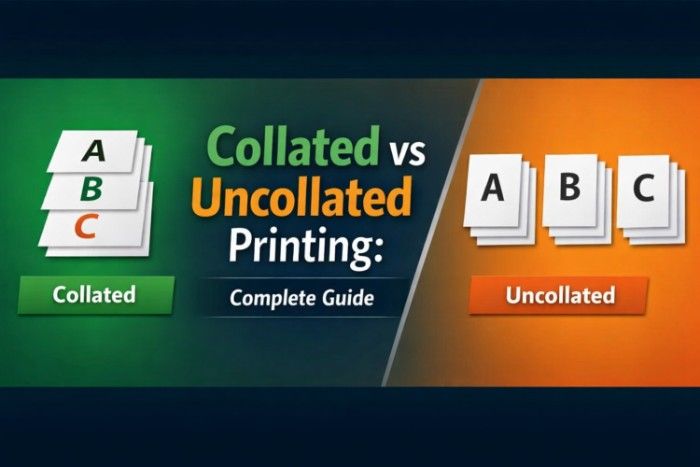
Collated printing means pages are printed in the correct sequence as complete sets, while uncollated printing groups identical pages together, requiring manual sorting afterward.
Understanding the difference between collated and uncollated printing can save time, prevent confusion, and help you manage documents more efficiently, especially when printing multiple copies.
In this guide, we’ll break down what these terms mean, how they work in real-life situations, and when you should use each option.
What Does Collated Mean?
Collated refers to arranging pages in a specific, logical order—usually the correct reading sequence.
Let’s say you have a 5-page document:
Page 1 → Page 2 → Page 3 → Page 4 → Page 5
If you print 3 copies with collate ON, the printer will produce:
-
- Set 1: 1, 2, 3, 4, 5
-
- Set 2: 1, 2, 3, 4, 5
-
- Set 3: 1, 2, 3, 4, 5
Each copy is complete and ready to use.
This is especially helpful when:
-
- Printing reports
-
- Creating booklets
-
- Preparing presentations
-
- Distributing documents to multiple people
In simple terms, collated = organized sets.
What Does Uncollated Mean?
Uncollated printing means pages are grouped by type instead of arranged into complete sets.
Using the same 5-page document example, printing 3 copies uncollated would produce:
-
- Page 1, Page 1, Page 1
-
- Page 2, Page 2, Page 2
-
- Page 3, Page 3, Page 3
-
- Page 4, Page 4, Page 4
-
- Page 5, Page 5, Page 5
So instead of complete sets, you get stacks of identical pages.
This means you would need to manually sort them into proper order afterward.
In simple terms, uncollated = grouped but not organized.
Collated vs Uncollated: Quick Comparison
| Feature | Collated | Uncollated |
|---|---|---|
| Page Order | Correct sequence | Grouped by page |
| Output | Complete document sets | Separate page stacks |
| Time Saving | Yes | No (requires manual sorting) |
| Best For | Reports, booklets, presentations | Bulk printing, binding, sorting |
| Effort Required | Minimal | More manual work |
How Collation Works in Printing
When you select the collate option in your printer settings, the printer processes the entire document as one unit before moving to the next copy.
This requires:
-
- More processing by the printer
-
- Slightly more time per copy
-
- Better organization of output
Modern printers handle this automatically, so you don’t need to worry about the complexity behind it.
How Uncollated Printing Works
With uncollated printing, the printer focuses on one page at a time and prints all copies of that page before moving to the next.
This method:
-
- Is faster in some cases
-
- Uses simpler processing
-
- Produces grouped stacks of pages
However, it shifts the burden of organizing onto you.
Real-Life Examples
Example 1: Printing a School Assignment
If you need to submit 5 copies of a 10-page assignment:
-
- Collated: Each copy is printed in full order → ready to submit
-
- Uncollated: You get piles of each page → must arrange manually
 Best choice: Collated
Example 2: Printing Handouts for a Meeting
Imagine printing 50 copies of a 3-page handout.
-
- Collated: 50 complete sets → easy distribution
-
- Uncollated: 3 stacks of pages → you must assemble
Best choice: Collated
Example 3: Printing for Binding or Stapling
If you’re sending pages for binding:
-
- Uncollated: Easier to stack and process in bulk
-
- Collated: May slow down large print jobs
Best choice: Uncollated (sometimes)
Example 4: Printing Large Volume Jobs
For very large print runs (like 500+ copies):
-
- Uncollated printing can be faster
-
- Useful in industrial or bulk printing setups
Best choice: Uncollated (for speed and batching)
When Should You Use Collated Printing?
Collated printing is ideal when:
-
- You need complete documents immediately
-
- You are printing multiple copies of reports
-
- You want to avoid manual sorting
-
- You are preparing presentations or study materials
Basically, if humans will read or use the documents directly, collated is the better option.
When Should You Use Uncollated Printing?
Uncollated printing works best when:
-
- You are printing large quantities
-
- You plan to sort or process pages later
-
- You are using external binding or finishing services
-
- You want faster print output in bulk
If the goal is production efficiency rather than convenience, uncollated can be useful.
Collated vs Uncollated in Different Devices
Printers
Most modern printers (HP, Canon, Epson) offer a simple checkbox for collation in print settings.
Photocopiers
Collation is commonly used in office copiers when duplicating multi-page documents.
PDF Software
Programs like Adobe Acrobat allow you to choose collation before printing.
Common Mistakes People Make
1. Ignoring the Collate Option
Many users don’t notice the checkbox and end up with disorganized pages.
2. Choosing Uncollated by Default
Some printers default to uncollated, especially in bulk settings.
3. Confusing Speed with Efficiency
Uncollated may print faster—but requires more manual work later.
Does Collating Affect Printing Speed?
Yes, slightly.
-
- Collated printing: Slower because the printer organizes sets
-
- Uncollated printing: Faster since it prints page batches
However, for small jobs, the difference is usually negligible.
Does Collating Use More Ink or Paper?
No.
Both collated and uncollated printing:
-
- Use the same amount of ink
-
- Use the same number of pages
The only difference is the order of output.
Why Collation Matters More Than You Think
Collation might seem like a small setting, but it has a big impact on productivity.
Choosing the wrong option can lead to:
-
- Wasted time
-
- Confusion
-
- Disorganized documents
-
- Frustration during meetings or submissions
On the other hand, using the right option makes your workflow smooth and efficient.
Simple Trick to Remember the Difference
-
- Collated = Complete sets
-
- Uncollated = Unorganized stacks
Or even simpler:
Collated = Ready to use
Uncollated = Needs sorting
How to Turn Collate ON or OFF (Step-by-Step)
Most people struggle not because the concept is hard—but because they can’t find the setting.
Here’s how to do it easily:
On Windows (Any Printer)
-
- Open your document
-
- Press Ctrl + P
-
- Select your printer
-
- Look for “Collate” checkbox
-
- Check or uncheck it
-
- Click Print
On Mac
-
- Open the file
-
- Press Command + P
-
- Expand print settings (if hidden)
-
- Find “Collated” option
-
- Enable or disable it
-
- Print your document
On PDF (Adobe Reader / Browser)
-
- Open PDF
-
- Click Print
-
- Look for “Collate” option
-
- Toggle it based on your need
On Office Printers / Photocopiers
-
- Select number of copies
-
- Choose Collate / Uncollate button
-
- Start printing
Most office printers even show a small icon:
-
 (stacked sets) = Collated
-
- (grouped pages) = Uncollated
Visual Example (Easy to Understand)
Let’s simplify with a quick example:
Document: 3 Pages (A, B, C) — 2 Copies
Collated Output
-
- A, B, C
-
- A, B, C
Ready-to-use sets
Uncollated Output
-
- A, A
-
- B, B
-
- C, C
Needs manual sorting
Collated vs Uncollated in Real Work Environments
1. Offices
In offices, collated printing is used almost everywhere:
-
- Reports
-
- Client documents
-
- Meeting handouts
Because no one wants to sort pages manually.
2. Schools & Universities
Students and teachers often print:
-
- Assignments
-
- Notes
-
- Exam papers
Collated printing saves time, especially during submissions.
3. Printing Shops
Interestingly, print shops often use uncollated printing for efficiency.
Why?
Because they:
-
- Use machines to sort pages later
-
- Print in bulk batches
-
- Bind documents afterward
4. Businesses & Bulk Printing
For large-scale printing:
-
- Uncollated = faster production
-
- Collated = ready-to-distribute documents
Businesses choose based on workflow.
Advanced Use Cases You Should Know
1. Booklet Printing
When printing booklets or manuals:
-
- Collated printing ensures correct order
-
- Prevents binding errors
2. Stapling & Binding
If your printer has a stapler:
-
- Collated = automatic stapled sets
-
- Uncollated = unusable for stapling
3. Double-Sided Printing
Collation becomes even more important with duplex printing.
Wrong setting = completely mixed pages.
4. Legal & Professional Documents
For contracts, proposals, or legal files:
-
- Collated printing is essential
-
- Mistakes can cause serious confusion
Common Problems and How to Fix Them
Problem 1: Pages Printed in Wrong Order
Cause: Collate turned OFF
Solution: Enable collate before printing
Problem 2: Printer Ignoring Collate Setting
Cause: Printer driver issue
Solution:
-
- Update printer driver
-
- Restart printer
-
- Try printing from another software
Problem 3: Slow Printing Speed
Cause: Collation enabled for large jobs
Solution:
-
- Use uncollated for bulk printing
-
- Sort later if needed
Problem 4: Mixed-Up Pages in Duplex Printing
Cause: Wrong combination of settings
Solution:
-
- Check both duplex and collate options carefully
Collated vs Uncollated: Which One Should You Choose?
Here’s a simple decision guide:
Choose Collated if:
-
- You need ready-to-use documents
-
- You’re printing reports or assignments
-
- You want to save time
-
- You’re distributing copies
Choose Uncollated if:
-
- You’re printing in bulk
-
- You’ll organize pages later
-
- You’re using binding machines
-
- You want faster printing
Still confused about how collating works in printers and documents? You can explore more detailed guides on what does collate mean, what does collate mean when printing, and collate meaning printer for a clearer understanding.
Conclusion
Understanding the difference between collated and uncollated printing is simple—but incredibly useful in everyday tasks.
-
- Collated printing keeps your documents organized and ready to use
-
- Uncollated printing focuses on speed and bulk processing
Choosing the right option depends on your workflow. For most everyday printing needs, collated is the best choice. But for large-scale or production-level tasks, uncollated printing can be more efficient.
Once you get used to this setting, you’ll never struggle with messy printouts again.