
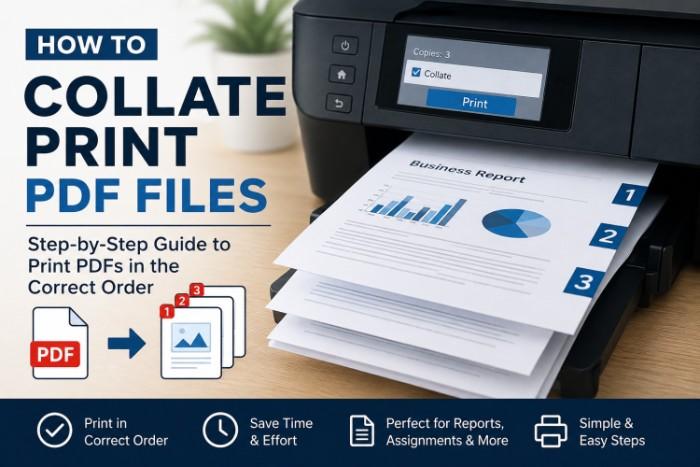
Printing a multi-page PDF sounds simple until the pages come out in the wrong order. If you’ve ever printed several copies of a document and had to manually rearrange every page, you’ve already seen why collating matters.
Understanding how to collate print PDF files can save time, reduce printing mistakes, and keep documents organized. Whether you are printing reports, assignments, contracts, booklets, or office documents, using the collate option ensures each copy prints in the correct sequence automatically.
In this guide, you’ll learn what collated printing means, how to collate PDF documents on different devices, and how to fix common printing problems.
What Does Collate Mean When Printing PDFs?
Collating means printing complete document sets in the correct page order.
For example, imagine you have a 5-page PDF and want 3 copies.
Collated Printing
Your printer outputs:
- Copy 1: 1,2,3,4,5
- Copy 2: 1,2,3,4,5
- Copy 3: 1,2,3,4,5
Uncollated Printing
Your printer outputs:
- 1,1,1
- 2,2,2
- 3,3,3
- 4,4,4
- 5,5,5
Collated printing is especially useful for:
- School assignments
- Business reports
- Contracts
- Manuals
- Presentations
- Booklets
Without collating, organizing pages manually becomes frustrating and time-consuming.
How to Collate Print PDF on Windows
If you use Windows, most PDF readers already include a collate option.
Using Adobe Acrobat Reader
Step 1: Open Your PDF
Open the PDF file in Adobe Acrobat Reader.
Step 2: Open Print Settings
Press:
Ctrl + Por click:
File → PrintStep 3: Select Multiple Copies
Choose how many copies you want to print.
Step 4: Enable “Collate”
Look for the checkbox labeled:
CollateEnable it before printing.
Step 5: Click Print
Your printer will now print complete document sets in order.
How to Collate Print PDF on Mac
Mac users can also collate PDFs directly from the print menu.
Steps for macOS
- Open the PDF in Preview or another PDF viewer.
- Click:
File → Print - Enter the number of copies.
- Check the:
Collatedoption. - Print the document.
Most modern Mac printers support collated printing automatically.
How to Collate PDFs in Google Chrome
Many people print PDFs directly from the browser.
Here’s how:
- Open the PDF in Google Chrome.
- Press:
Ctrl + P - Increase the number of copies.
- Expand:
More Settings - Enable:
Collate - Click Print.
This method works well for quick office or home printing tasks.
Why Is Collating Important?
Collating keeps multi-page documents organized automatically.
Benefits of Collated Printing
Saves Time
You don’t need to sort pages manually.
Reduces Mistakes
Documents stay in proper sequence.
Improves Productivity
Helpful for offices printing large document batches.
Better for Professional Documents
Contracts, proposals, and reports look cleaner and more organized.
Common Problems When Printing Collated PDFs
Sometimes the collate feature doesn’t work correctly.
Here are the most common reasons.
Printer Does Not Support Collating
Older printers may not support automatic collating.
Solution
Update printer drivers or use software-based collating.
Wrong Print Settings
Sometimes the collate box is accidentally unchecked.
Solution
Double-check print settings before printing.
PDF Reader Issues
Some lightweight PDF viewers lack proper collating support.
Solution
Use reliable software like:
- Adobe Acrobat Reader
- Foxit PDF Reader
- Google Chrome
Difference Between Collated and Uncollated Printing
Understanding this difference helps avoid printing confusion.
| Feature | Collated | Uncollated |
|---|---|---|
| Page Order | Complete sets | Same pages grouped |
| Best For | Reports, PDFs, booklets | Single-page handouts |
| Manual Sorting Needed | No | Yes |
| Time Saving | High | Low |
Best Practices for Printing Collated PDFs
Follow these tips for smoother printing.
Preview Before Printing
Always check print preview to verify page order.
Use Updated Printer Drivers
Outdated drivers can cause print errors.
Print Small Test Copies First
Before printing 100 copies, test one set.
Choose Reliable PDF Software
Better software reduces formatting issues.
Can You Collate Double-Sided PDF Printing?
Yes. Most modern printers allow collated duplex printing.
This means:
- Pages print in order
- Both sides are used
- Each copy stays organized
This is useful for:
- Booklets
- Training manuals
- Office reports
- Educational material
Look for these settings:
Print on Both Sidesand
CollateEnable both together.
How to Collate Large PDF Files Efficiently
Large PDFs can slow down printers.
Here’s how to improve performance.
Split Large Files
Use PDF tools to divide huge documents.
Print in Batches
Instead of 500 copies at once, print smaller groups.
Use Office Printers
Commercial printers handle collated jobs more efficiently.
Frequently Asked Questions
What does collate mean in PDF printing?
Collate means printing multiple copies of a document in the correct page sequence automatically.
Should I print collated or uncollated?
Choose collated printing for multi-page documents. Use uncollated printing when you need stacks of identical pages.
Why is my printer not collating PDFs?
This can happen because of outdated drivers, unsupported printers, or incorrect print settings.
Does Adobe Acrobat support collated printing?
Yes. Adobe Acrobat Reader includes a built-in collate option in the print menu.
Can I collate PDFs on mobile devices?
Yes. Some mobile PDF apps support collated printing depending on printer compatibility.
Final Thoughts
Learning how to collate print PDF files is a simple but valuable skill. It helps keep documents organized, saves time, and improves printing efficiency at home, school, or work.
Before printing multiple copies, always check:
- Page order
- Number of copies
- Collate settings
- Duplex settings
Using the collate feature properly can prevent unnecessary sorting and make document handling much easier.
If you frequently print reports, assignments, manuals, or contracts, collated printing should always be part of your workflow.