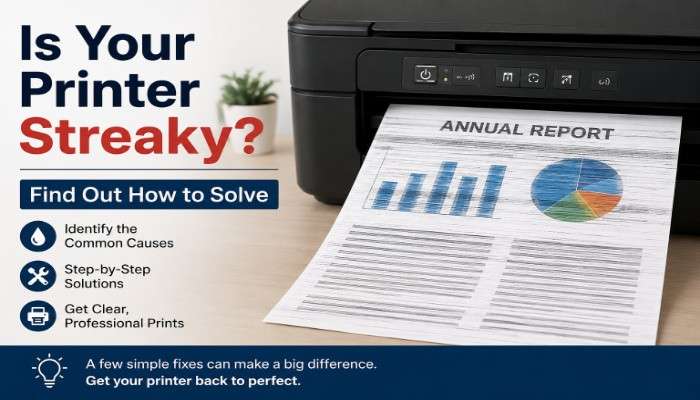
Have you noticed lines, smudges, or streaks appearing on your printed documents? If so, you’re not alone. A streaky printer is one of the most common printing problems faced by home users, students, and businesses alike.
Whether you’re printing important reports, school assignments, invoices, or marketing materials, streaks can make your documents look unprofessional and difficult to read. The good news is that most printer streak issues can be fixed without replacing your printer.
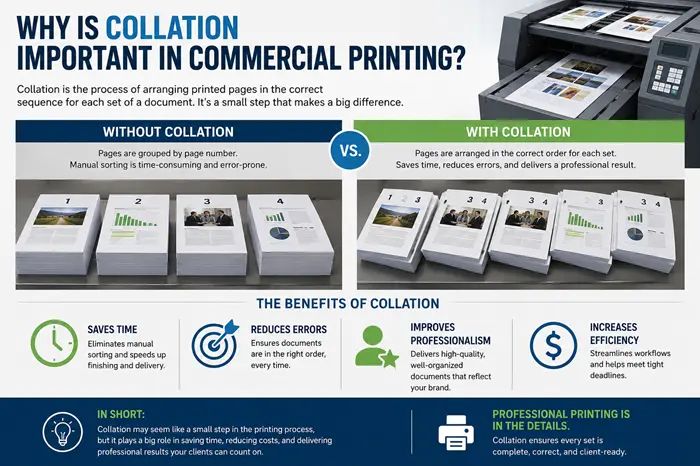
In this guide, you’ll learn how to fix printer streaks, understand what causes them, discover simple troubleshooting steps to restore clear, crisp print quality, and also visit to know what does collate mean when printing documents.
What Causes Printer Streaks?
Printer streaks can appear for several reasons. Identifying the cause is the first step toward finding the right solution.
Common causes include:
- Low or dried-out ink cartridges
- Clogged printheads
- Dirty printer rollers
- Damaged drum units
- Incorrect print settings
- Poor-quality paper
- Toner cartridge problems
- Dust and debris inside the printer
The exact cause often depends on whether you’re using an inkjet printer or a laser printer.
Common Printer Streak Problems and Solutions
| Printer Problem | Possible Cause | Recommended Solution |
|---|---|---|
| Horizontal streaks | Clogged printhead | Run printhead cleaning cycle |
| Vertical streaks | Damaged drum unit | Replace or clean drum unit |
| Faded prints | Low ink or toner | Replace cartridge |
| Missing colors | Blocked printhead nozzles | Clean and align printhead |
| Smudged prints | Dirty rollers | Clean printer rollers |
| Black lines on pages | Faulty toner cartridge | Replace toner cartridge |
| Uneven printing | Misaligned printhead | Perform printhead alignment |
How to Fix Printer Streaks: Step-by-Step Guide
1. Check Ink or Toner Levels
One of the most common reasons for streaky printing is low ink or toner.
When cartridges run low, the printer may struggle to distribute ink evenly across the page, resulting in faded lines and streaks.
What to Do
- Open your printer software.
- Check the ink or toner status.
- Replace any cartridges that are running low.
- Print a test page.
If streaks disappear, the issue was likely caused by insufficient ink or toner.
2. Clean the Printhead
A clogged printhead is a major cause of streaks in inkjet printers.
Over time, dried ink can block the tiny nozzles that spray ink onto paper.
Signs of a Clogged Printhead
- Missing colors
- Horizontal streaks
- Faded text
- Uneven print quality
How to Clean the Printhead
Most printers have a built-in cleaning feature:
- Open printer settings.
- Select “Maintenance.”
- Click “Printhead Cleaning.”
- Run the cleaning cycle.
- Print a test page.
You may need to repeat the cleaning process two or three times for heavily clogged printheads.
Why Does My Printer Print Horizontal Lines?
Horizontal streaks usually indicate an ink delivery issue.
Common Causes
- Clogged printhead nozzles
- Low ink levels
- Air bubbles in cartridges
- Misaligned printheads
Quick Fix
Run a printhead cleaning cycle followed by a printhead alignment test.
This solves the majority of horizontal line problems.
Why Does My Printer Print Vertical Streaks?
Vertical streaks are more common in laser printers.
Possible Causes
- Damaged drum unit
- Dirty rollers
- Defective toner cartridge
- Debris inside the printer
Solution
Inspect the toner cartridge and drum assembly. Clean accessible rollers and replace damaged components if necessary.
Clean Printer Rollers for Better Print Quality
Dirty rollers can transfer dust, toner, and debris onto paper.
How to Clean Printer Rollers
- Turn off the printer.
- Unplug the power cord.
- Open the access panel.
- Locate the rollers.
- Use a lint-free cloth lightly dampened with water.
- Gently wipe each roller.
- Allow them to dry completely.
Regular roller cleaning helps prevent recurring streaks.
Align the Printhead
Misaligned printheads can create blurry images, uneven text, and visible streaks.
Steps to Align the Printhead
- Open printer maintenance settings.
- Select “Align Printhead.”
- Follow on-screen instructions.
- Print an alignment page.
Proper alignment ensures ink is applied accurately.
Replace Damaged Ink Cartridges
Sometimes the cartridge itself is the problem.
Signs of a Faulty Cartridge
- Leaking ink
- Missing colors
- Persistent streaks after cleaning
- Error messages
If cleaning doesn’t help, installing a new cartridge may solve the issue immediately.
Check Your Paper Quality
Many people overlook paper quality when troubleshooting print problems.
Low-quality paper can absorb ink unevenly and contribute to streaking.
Use Paper That Is
- Compatible with your printer
- Dry and moisture-free
- Stored properly
- Recommended by the manufacturer
Using quality paper improves overall print results.
Fix Streaks in Laser Printers
Laser printers have unique components that can cause streaks.
Common Laser Printer Issues
Dirty Drum Unit
The drum transfers toner onto paper. Dirt or damage can create streaks.
Worn Fuser Assembly
The fuser uses heat to bond toner to paper. A failing fuser may leave marks or smudges.
Defective Toner Cartridge
A damaged toner cartridge can distribute toner unevenly.
Recommended Fixes
- Replace the toner cartridge
- Clean the drum unit
- Inspect the fuser
- Run maintenance diagnostics
Prevent Printer Streaks in the Future
Prevention is easier than troubleshooting recurring problems.
Best Practices
- Print regularly to prevent ink drying
- Store cartridges correctly
- Use high-quality paper
- Clean your printer monthly
- Keep the printer dust-free
- Replace consumables before they fail
- Run maintenance checks periodically
Following these habits can significantly extend your printer’s lifespan.
When Should You Replace Printer Parts?
If streaks continue after cleaning and maintenance, a worn component may be responsible.
Parts That May Need Replacement
- Ink cartridges
- Toner cartridges
- Printheads
- Drum units
- Rollers
- Fuser assemblies
Consult your printer manual to determine replacement schedules.
Quick Troubleshooting Checklist
| Step | Action | Difficulty |
|---|---|---|
| 1 | Check ink or toner levels | Easy |
| 2 | Run printhead cleaning | Easy |
| 3 | Align printhead | Easy |
| 4 | Clean printer rollers | Moderate |
| 5 | Replace cartridge | Easy |
| 6 | Inspect drum unit | Moderate |
| 7 | Check fuser assembly | Advanced |
| 8 | Update printer drivers | Easy |
| 9 | Print test page | Easy |
| 10 | Contact professional support | Advanced |
If your printer is streaking, try these solutions:
✔ Check ink or toner levels
✔ Clean the printhead
✔ Align the printhead
✔ Replace damaged cartridges
✔ Clean printer rollers
✔ Use quality paper
✔ Inspect the drum unit
✔ Check the fuser assembly
✔ Run printer diagnostics
✔ Update printer drivers
Following this checklist resolves most streak-related issues.
Frequently Asked Questions
How do I fix streaks on my printer?
Check ink or toner levels, clean the printhead, align the printhead, and clean the rollers. These steps solve most printer streak issues.
Why is my printer leaving lines on paper?
Lines are typically caused by clogged printheads, low ink, dirty rollers, damaged drums, or faulty toner cartridges.
Can low ink cause streaky printing?
Yes. Low ink often leads to faded text, missing colors, and streaks across printed pages.
Why does my laser printer have black streaks?
Black streaks are usually caused by a damaged drum unit, toner cartridge problems, or dirt inside the printer.
How often should I clean my printer?
For regular users, cleaning the printer every one to three months helps maintain optimal print quality.
Should I replace the cartridge if cleaning doesn’t work?
Yes. If multiple cleaning cycles fail to remove streaks, the cartridge may be damaged and require replacement.
Final Thoughts
A streaky printer can be frustrating, but most issues have simple solutions. By checking ink levels, cleaning printheads, maintaining rollers, and replacing worn components when necessary, you can restore professional-quality prints without spending money on a new printer.
If your printer continues to produce streaks after trying these fixes, it may be time for professional servicing or replacement of key internal components. Regular maintenance is the best way to keep your printer performing at its best and avoid future print quality issues.
Take Action Today: Follow the troubleshooting steps above and perform a maintenance check on your printer. A few minutes of cleaning could save you hours of frustration and improve every document you print.