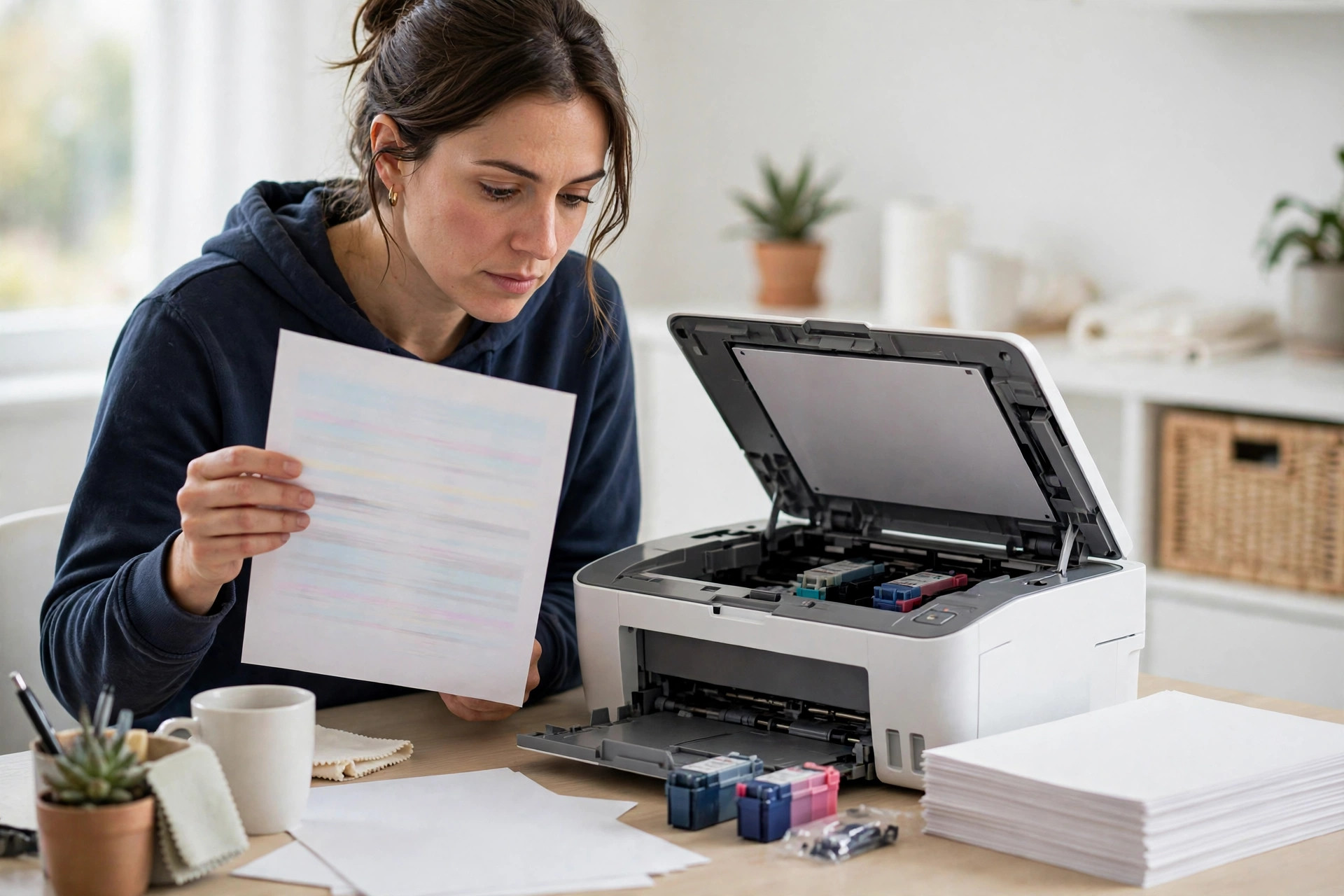
A printer that worked fine yesterday can suddenly produce streaky pages, the wrong colours, or a paper jam. Most of these faults look serious but have simple causes, and knowing how to fix common printing problems will save you time, ink, and frustration. This guide walks through the problems people actually run into — banding, colour mismatch, paper jams, blurry prints, and ink smearing — with the likely cause of each and the fix to try first.
Before you try anything specific, run through the quick checks: make sure the printer has paper and enough ink, restart both the printer and your computer, and check that the right printer and paper size are selected. A surprising number of “broken” printers are fixed by one of those steps. It also helps to start from a clean file — our guide on how to prepare files for print covers the settings that prevent many problems before they reach the printer.
Start With the Basics: A Quick Diagnostic
When a print goes wrong, print a test page or a nozzle check pattern from the printer’s own menu, not from your computer. If the test page is also faulty, the problem is in the printer itself — ink, heads, or paper feed. If the test page is fine, the problem is in the file or the print settings.
Problem 1: Banding and Lines Across the Page
Banding shows up as horizontal stripes or lines across a print, often in solid areas of colour. On inkjet printers the usual cause is a clogged or misaligned print head. Run the printer’s head-cleaning cycle from its maintenance menu, then print a nozzle check. One cleaning cycle is usually enough; running it five times in a row wastes ink. If lines remain, run a print-head alignment.
Low ink can also cause banding, because the printer cannot lay down a full line of colour. Check the ink levels and replace a cartridge that is genuinely low. On laser printers, banding is more often caused by a dirty or damaged drum or a failing toner cartridge — try removing the toner, gently rocking it side to side, and printing again. If the lines are in exactly the same place every time, the drum or roller is likely damaged and needs replacing. The exact steps vary by printer type, and the differences between inkjet and laser machines are worth knowing — see our explainer on what digital printing is.
Problem 2: Colours Look Wrong
Colour mismatch is one of the most common complaints: the print comes out too dark, too red, washed out, or nothing like the screen. First, remember that screens and printers do not show colour the same way — screens use light, printers use ink — so an exact match is unrealistic.
Check that you are printing in the right colour mode. Photos should be printed from RGB files with the printer managing colour, while professional print files are often CMYK, which can look dull without the right profile. In your print settings, make sure the paper type matches the paper actually loaded: printing on glossy photo paper with the “plain paper” setting will produce washed-out colours. Also check that no ink colour has run out — a missing cyan or yellow cartridge shifts every colour.
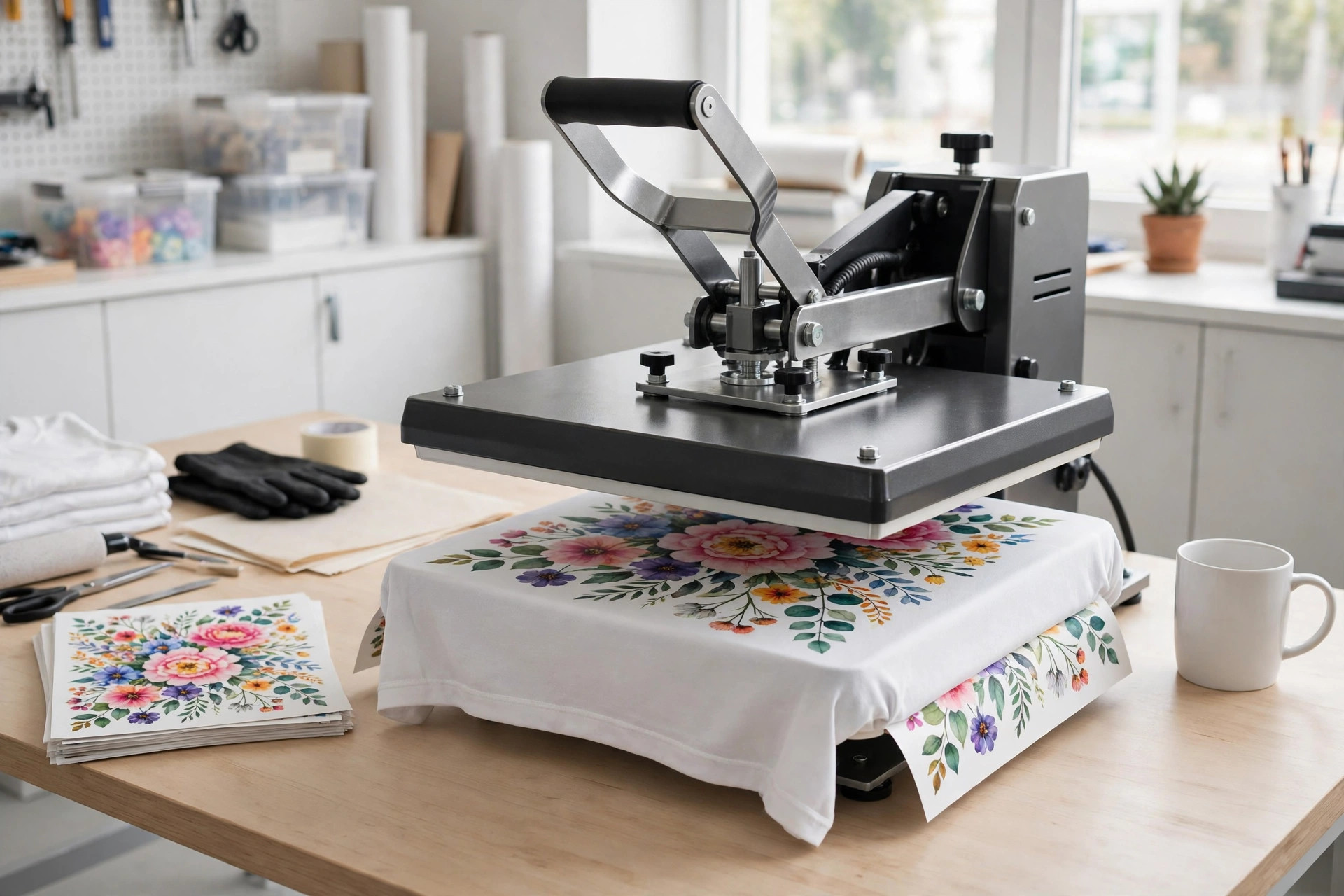
If colours are consistently off, run a colour calibration or print a colour test page and compare it with the printer’s manual. Using the manufacturer’s own ink and paper, rather than third-party supplies, also removes a common source of colour error. Specialist processes behave differently again: in what sublimation printing is, colours change as the dye is heated, so a sublimation print is judged after pressing, not from the paper.
Problem 3: Paper Jams
Paper jams are annoying, but they are rarely a sign of a dying printer. The most common cause is paper that is damp, curled, or loaded incorrectly. Fan the stack before loading it, tap it on a flat surface to align the edges, and do not overfill the tray. Remove curled or damaged sheets, and store paper flat in a dry place.
To clear a jam, turn the printer off first, then pull the paper out slowly in the direction it normally travels. Pulling backwards or yanking can leave torn fragments inside, which cause the next jam. Check for small torn pieces and any foreign object, such as a paperclip, in the paper path. If the rollers look shiny and smooth, wipe them with a lint-free cloth dampened with water to restore their grip.
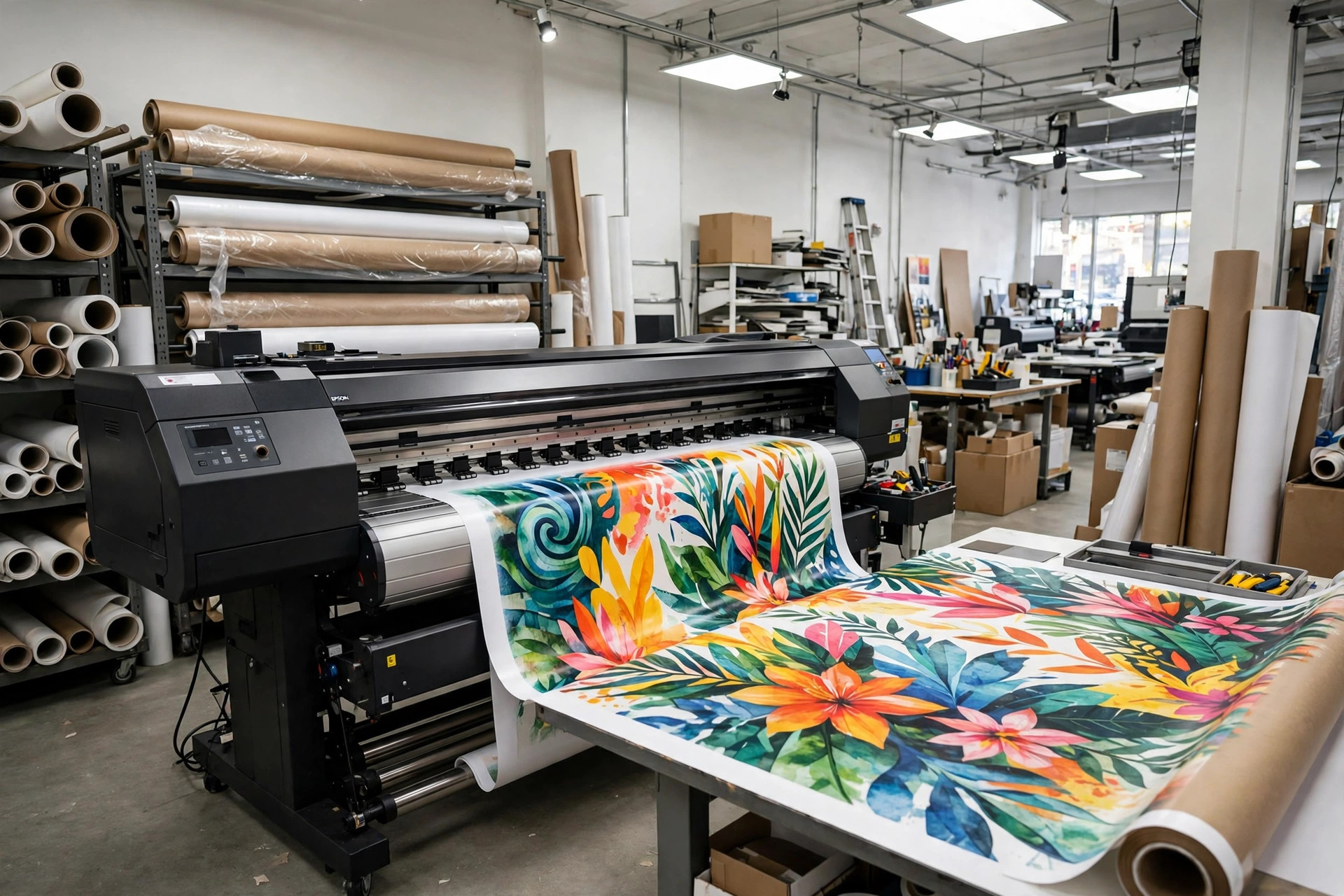
If jams keep happening with one type of paper, try a different weight or brand. Very thick card can jam in printers not built for it, and very thin paper can stick together. Wide-format machines have their own feed quirks, explained in our guide to what large format printing is.
Problem 4: Blurry or Out-of-Focus Prints
A blurry print usually means the file, not the printer. Check the image resolution first: an image that looks fine on screen can be too low-resolution for print. For a sharp result, photos should be around 300 dots per inch at the size you are printing. Stretching a small web image across a full page will always look soft.
If the file is fine, check the print quality setting — a “draft” or “fast” mode prints quickly with less ink and less sharpness, so switch to “normal” or “best” for final copies. Also make sure the paper type setting matches the loaded paper, and that the paper is loaded the right way up: glossy paper has a coated printing side, and printing on the back produces a dull, soft image.
On inkjet printers, a misaligned print head can also blur text and edges; run the alignment utility if cleaning did not help. On laser printers, blurry output can come from a worn drum or toner that has not fused properly — if the toner rubs off, let the printer warm up fully and try a heavier paper setting, which increases the fuser temperature. UV-cured printing avoids this kind of smudging altogether, as explained in our guide to what UV printing is.
Problem 5: Ink Smearing and Smudging
Ink that smears when you touch the page is usually a drying problem. The most common cause is printing on the wrong side of coated paper, or using a paper type that does not absorb the ink your printer uses. Inkjet ink needs to soak into the paper; on glossy paper designed for a different printer, it sits on the surface and smears for hours.
Let pages dry before stacking them, and do not pile fresh prints together — they will transfer ink. In the print settings, select the correct paper type and choose a slower or higher-quality mode, which lays down less ink at once. If you recently refilled a cartridge, check for leaks: a dripping cartridge will smear every page until it is cleaned or replaced.
For laser printers, smearing usually means the toner is not fusing — check the paper setting and make sure you are not using inkjet-only paper in a laser printer, which can damage the machine. If smearing appears only in one spot, look for a dirty roller or a buildup of toner inside the printer and clean it according to the manual.
Problem 6: Faded or Washed-Out Prints
If prints look pale even with full cartridges, check the obvious first: the printer may be set to draft mode, toner-save mode, or grayscale. Switch those off for a proper test. On inkjet printers, a clogged nozzle can starve one colour and wash out the whole image — run a nozzle check and clean the heads if any colour is missing.
Old or incompatible supplies are another cause. Toner and ink do not last forever, and a cartridge that has sat unused for a year may print faintly. Using the correct paper matters too: inkjet ink on plain copier paper looks duller than on proper inkjet paper.
When to Repair, Replace, or Call a Professional
Most home and small-office printing problems are fixed by the steps above, but some faults are not worth chasing. If a printer needs a new print head that costs almost as much as a replacement printer, replacement is usually the better choice.
Call a professional or the manufacturer’s support if the printer is under warranty, if the fault involves the fuser or high-voltage parts of a laser printer, or if you print commercially and downtime costs money. Before you call, note the exact error message, the printer model, and what you have already tried — support will ask for all three.
Frequently Asked Questions
Why is my printer printing blank pages?
Blank pages are usually caused by an empty or clogged ink cartridge, a print head that needs cleaning, or a driver problem. Run a nozzle check first: if the pattern is blank, clean the print heads and check the ink levels. If the nozzle check is fine, reinstall or update the printer driver and check that the correct printer is selected.
Why do my prints have lines across them?
Lines or banding on an inkjet printer are most often caused by clogged nozzles or a misaligned print head. Run a head-cleaning cycle followed by a nozzle check, then run the alignment utility. On a laser printer, the same symptom usually points to a dirty drum or a failing toner cartridge, so try redistributing the toner or replacing the cartridge.
How do I stop my printer from jamming?
Fan the paper before loading it, do not overfill the tray, and remove curled or damaged sheets. Store paper flat in a dry place, and use a paper weight your printer supports. If jams persist, clean the feed rollers with a damp lint-free cloth and check for torn fragments left inside from an earlier jam.
Why do printed colours not match my screen?
Screens display colour with light and printers with ink, so an exact match is not possible. Large differences are usually caused by the wrong paper-type setting, an empty ink colour, or printing a CMYK file without the right colour profile. Match the paper setting to the paper loaded, check all ink levels, and let the printer manage colour for everyday photo printing.
Is it worth repairing an old printer?
It depends on the cost of the repair against a replacement. A new cartridge, a roller clean, or a driver reinstall is worth doing. A replacement print head, fuser, or feed mechanism that costs close to the price of a new printer usually is not — especially for older models where parts are hard to find. If the printer is under warranty, contact the manufacturer first.
More Articles You’ll Like
Keep reading — more from this category and across the site:
- What Is Offset Printing? A Beginner’s Guide
- What Is 3D Printing? How It Works and What It’s Used For
- 50 Funny Hot Chocolate Jokes for Kids and Adults
- How to Build a Workout Routine for Beginners
- How to Choose the Right Packaging Materials for Your Product
- How to Create a Business Budget: A Step-by-Step Guide
- How to Find Obituaries in Athens, AL: A Step-by-Step Guide
- What Does ‘Limerence’ Mean? Meaning, Origin, and Examples
- What Does ‘Lowkey’ Mean? Meaning, Origin, and Examples